
Tech
How to Turn a Picture into PDF Online for Free?

I convert a picture into PDF way more times than I care to admit such as work stuff, rental applications, receipts you name it. You really would think it’d be one of those simple click-and-done things, but nope. Some of these tools are slower than DMV lines, half of them slap watermarks on your stuff, and others just straight-up mangle your images like they’re trying to fold a pizza in half.
Sometimes, the quality tanks, sometimes the orientation’s wrong, and sometimes they want you to sign up for the 47th time today-it’s a whole thing. Getting a picture into pdf consistently, cleanly, and without pulling your hair out can be like assembling IKEA furniture with no instructions.
So, I went ahead and tested a bunch of tools myself. I clicked, dragged, uploaded, and converted the whole shebang.
Let’s walk through what actually worked.
How I Tested These Tools?
Before I dove in, I set up some real-deal criteria. None of that marketing fluff – just the stuff that actually matters when you’re trying to convert photos to pdf without losing your sanity.
Test Criteria
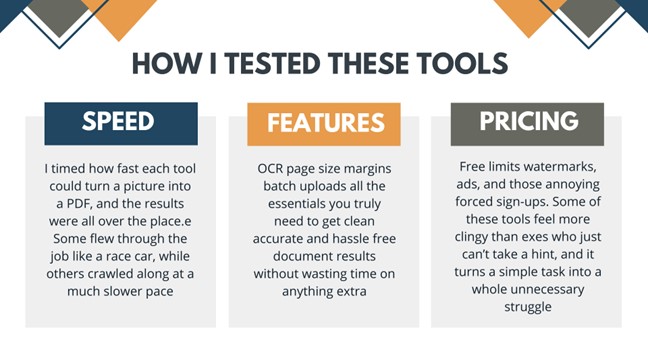
- Speed: I timed the speed at which each cranked out a picture into a PDF. Some were NASCAR-fast; others were … not.
- Ease of Use: If the interface made me feel like decoding hieroglyphics, it got points off.
- Accuracy: Did the PDF look crisp? Did the tool squish or blur hi-res pics?
- Features: OCR, page size, margins, batch upload—basically the good stuff you actually need.
- Pricing: Free limits, watermarks, ads, and forced sign-ups. The tools are more clingy than exes.
- Weaknesses: Daily caps, file size limits, missing features, login walls.
Test Files I Used
I used:
- 5 assorted JPG/PNG images
- Total size around 8-10 MB
- Landscape + portrait
Some sharp photos, some simple screenshots
Mainly, the kind of files regular people use when they just want to convert picture to PDF without seeing the quality nosedive.
What are Top 5 Tools to Turn a Picture into PDF? (Reviewed & Tested)
In all, I got my hands on a couple of tools to convert PNG to PDF, but only 5 of them are solid enough to really test. A bunch of them slow, buggy, or just plain frustrating! That’s why, I ditched the rest. Out of 5, only one came out on top that runs smoothly, fastly, and delivers crisp PDFs without all the headaches.
1. Smallpdf
It is a clean, easy-to-use tool for anyone who just needs to transform picture into PDF once in a while even of 10 MB. But, having personally tested it with multiple images, page size tweaks, margins, and login limits, I can say that it is definitely not the powerhouse people hype it up to be. Batch uploads work great at first, then after one or two conversions.
Smallpdf dings you with daily limits and “please sign in” pop-ups like they’re trying to sell you a gym membership. Page-size control is basic, margin options super limited, and the lack of detailed previews means you’re kinda converting on faith.
My Experience:
Uploading images was smooth, output looked crisp, but Smallpdf hits you with the “Daily limit reached” real fast.
Pros:
- Gorgeous interface
- Very easy for beginners
- High-quality PDFs
Cons:
- Strict daily limits
- Occasional “please sign in” nudges
Pricing
- Free Trial
- for 1 month
- Pro – $12/month
Verdict:
Perfect for light users who just need to convert picture to pdf once in a blue moon.
2. Adobe Acrobat Online
I tried converting different JPG/PNG images in Adobe Acrobat Online. All of them were 8-10MB. While the PDFs quality is not so great. I got stuck into a few frustrations too. The speed is not that fast that I was searching for.
The clean interface makes it easy to browse any tool you want, but in picture to PDF tool, changing margins & sizes of pages was not very intuitive. Some of the more advanced layout options required either multiple clicks or an account. OCR worked well, but trying to convert several files at once quickly triggered limitations in the free tier. All in all, while this produces high-quality PDFs, everyday quick conversion proves to be less convenient compared to other tools.
My Experience:
The output was crisp, colors stayed rich, and the orientation was dead-on. OCR worked great too. But after a few conversions, Adobe starts giving you that “So… about that subscription?” side-eye.
Pros:
- Best quality of all tools
- Professional-level output
- OCR works beautifully
Cons:
- Many features locked unless you pay
- Requires login for anything fancy
Pricing:
- Adobe Acrobat Online is free, while Acrobat Pro starts at $19.99/month.
Verdict:
Best for anyone who wants high-quality photo to pdf output and doesn’t mind Adobe trying to upsell them every five minutes.
3. iLovePDF2.com (The Winner One)
With iLovePDF2, I experimented with five JPG/PNG images of mixed portrait and landscape orientation, each about 8-10MB, which was a complete breeze. It went NASCAR-fast! I hardly had time to sip my coffee before the PDFs were out.
The interface is super clean and easy to navigate, and page sizes, margins, or even batch uploading multiple images were smooth and straightforward. I got results came out crisp with no blurring or squishing, even on high res photos. I didn’t hit any annoying login walls or watermarks and hidden paywalls. All in all, i Love PDF 2 handled everything like a champ, making it by far my top pick for anyone who wants quick, reliable & high-quality picture-to-PDF conversions.
My Experience:
Best of all! Clear output, no weird cropping, no “surprise” watermark. No standard or business packages, all premium features without paying a single penny
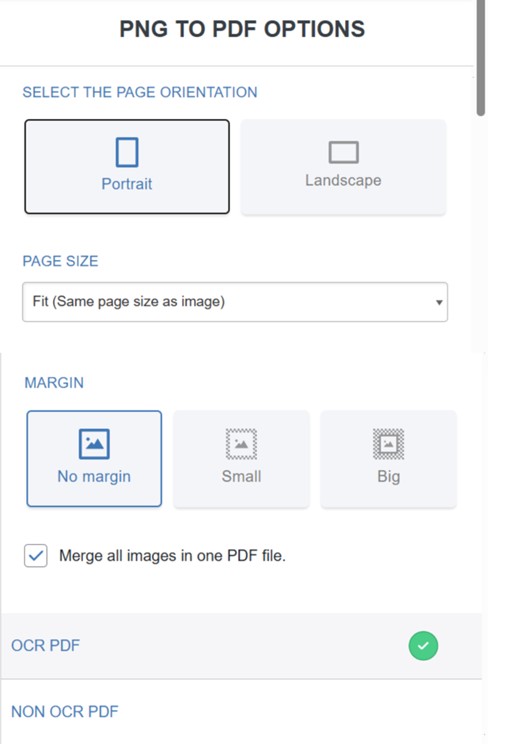
Features I Actually Used:
- Batch uploads
- Margin controls
- Page size presets
- Orientation options
- No-login conversions
How I Did It:
- Dragged my pics in
- Picked page layout
- Hit Convert
Boom – done before I even took a sip of coffee.
Pros:
- Super-fast
- Great quality
- No limits
- Totally free
- No OCR mode
- Page size options
- Additional free tools
Cons:
- A couple of ads here and there
Pricing:
- 100% Free – unlimited use with all premium features included
Verdict:
Best all-around tool for anyone wanting to turn a picture into pdf without all the extra hoops.
4. SodaPDF
I tested SodaPDF with couple of JPG/PNG images mixed between portrait and landscape. And guess what? it did the job, but nothing about it wowed me. The speed was fine enough. Decent for a few images, but when I tried batch uploads, it started dragging and felt slower than I’d like. The interface is simple enough to figure out, but changing page sizes and margins wasn’t very intuitive, and some options felt buried under menus.
The PDFs came out acceptable and clear enough for casual use. But I got disappointed when high resolution photos didn’t always stay perfectly sharp. Also, after a few conversions, it stops due to limits. Overall, SodaPDF is fine for small & occasional tasks, but it’s not a powerhouse.
My Experience:
Clean interface, decent speed, and nice output. Daily conversion caps do show up pretty quick, though.
Pros:
- Beginner-friendly
- Solid quality
- Straightforward interface
Cons:
- Daily limits
- Upsells sprinkled in
Pricing:
- Monthly standard $9/month
- Monthly Pro $12/month
- Monthly Business $20/month
Verdict:
Ideal for casual folks looking to convert photos to pdf once in a while.
5. PDFCandy
When I first open PDFCandy, I got impressed by loads of features right there. From converting different file types to merging, editing, & compressing PDF. To begin with, everything feels smooth and easy to navigate and I am really digging how straightforward the interface is. But, once I started working in it more, though, a few headaches presented themselves.
First, the speed slowed down, especially on bigger tasks, and adjusting page size or margin is not intuitive as it initially seems. Some of the advanced options felt buried, and handling multiple files at once became a bit of a chore. Overall, PDFCandy is solid for casual pic to PDF work, but those small speed issues and awkward adjustments kept it from feeling completely effortless.
My Experience:
Smooth uploads, solid quality, and zero watermarks. The site does get a little sluggish sometimes, but still a strong contender.
Pros:
- Lots of free tools
- Batch conversions
- Good quality
Cons:
- Some daily limits
- Occasional slow loading
Pricing:
- Free Version with limited access
- Desktop + Web Yearly $4/month
- Web Monthly $6/month
Verdict:
A good free tool but daily limits and low-quality user-interface.
Picture Into PDF Comparison Table (Based on My Real Testing)
| Tool | Speed | Quality | Batch Support | Free Limits | Best For |
| SmallPDF | Good | High | Yes | 1–2/day | Casual users |
| Adobe Acrobat Online | Good | High | Limited | Restricted | Light usage |
| PDF Candy | Good | Medium | Yes | Some limits | High-end quality |
| SodaPDF | Medium | High | Yes | Daily caps | All-around free tool |
| ILovePDF2.com | Fast | High | Yes | Unlimited | Everyday users |
Which Tool Should You Choose? (My Honest Breakdown)
Here’s the short version based on my hands-on testing:
- Best for instant, unlimited conversions → iLovePDF2
- Best for perfect clarity → iLovePDF2
- Best for batch jobs → PDFCandy
- Best totally free experience → iLovePDF2
- Best for casual users → smallPDF
My Final Verdict
After putting all these tools through their paces, iLovePDF2.com came out as my top pick. It’s fast, clean, & doesn’t hassle you. Adobe is unbeatable for professional-quality output, Smallpdf is perfect for quick one-offs. PDFCandy plus SodaPDF fill in the gaps nicely.
Whatever you’re working on, you can turn any picture into pdf without the headache – just pick the tool that fits your vibe.

Seasonal Inground Pool Decor Ideas That Work with Your Custom Design

How Salesforce Development Services Drive Digital Transformation

Why You Should Be Concerned About Gums That Recede Over Time

Buying an Existing Business? The Due Diligence Mistakes That Cost Buyers Thousands

Old House, Old Pipes: When Should Australian Homeowners Actually Worry?

Contact Lens Comfort 101: Daily Lenses, Cosmetic Styles and Eye Drops Explained

Why Safety Standards Matter in Demolition Projects

A Simple Way to Enjoy Fresh Air Without the Annoyance

Strategic Brand Monitoring: Integrating Social Listening, Risk Mitigation, and Market Insight

Inside Seiko: How Prospex Watches Are Tested for Real-World Toughness

Who Is Kate Garraway New Partner? The Truth Revealed

Brandi Raines Net Worth 2025: Age, Bio, Career, Husband and Children

Betsy Grunch Net Worth 2025: Salary, Career, Husband, and Life Story

Salma Shah Biography: Age, Career, Net Worth, Husband and Children

Nomia Iqbal Biography: Age, Husband, Career, Net Worth and BBC Journey

Kay Crewdson Biography: Age, Date Of Birth, Husband, Children, and Net Worth

Sophia Wenzler Biography: Age, Date of Birth, Husband, Career Story, and Net Worth

Ági Barsi’s Untold Story: Sister Of Judith Barsi And Her Battle With Cancer

Mike Danson Biography: Age, Net Worth, Wife, Children and Full Story

Where Is Tulip Victoria Khaury Today?: Everything About Tiny Tim’s Only Daughter
Seasonal Inground Pool Decor Ideas That Work with Your Custom Design
How Salesforce Development Services Drive Digital Transformation
Why You Should Be Concerned About Gums That Recede Over Time
Buying an Existing Business? The Due Diligence Mistakes That Cost Buyers Thousands
Old House, Old Pipes: When Should Australian Homeowners Actually Worry?
Contact Lens Comfort 101: Daily Lenses, Cosmetic Styles and Eye Drops Explained
Why Safety Standards Matter in Demolition Projects
A Simple Way to Enjoy Fresh Air Without the Annoyance
Strategic Brand Monitoring: Integrating Social Listening, Risk Mitigation, and Market Insight
Inside Seiko: How Prospex Watches Are Tested for Real-World Toughness
-
 News4 months ago
Who Is Kate Garraway New Partner? The Truth Revealed
-
 Net Worth9 months ago
Brandi Raines Net Worth 2025: Age, Bio, Career, Husband and Children
-
 Net Worth9 months ago
Betsy Grunch Net Worth 2025: Salary, Career, Husband, and Life Story
-
 Biography9 months ago
Salma Shah Biography: Age, Career, Net Worth, Husband and Children